Hello All, This Time Engineers Corner Brings you a Tech Support for all computer Geeks. Like me many of you have encountered a Problem that why your USB device is not working. or why one of your USB Hub or Device is not working. You may have searched whole internet for this solution but this time Engineers Corner is Back with a Simple trick and Solution for Your Problem regarding USB device.
Whenever you plug your Data Card or any other USB Device, Like mouse, Pen Drive etc. You Noticed that one of your USB Port is not working. But What is the fact Behind that? Actually the USB Hub or a Port is Not getting Power may be the LED light of your device is not Glowing. Yes, This is the fact the Computer actually Turns Off the USB Port to Consume your Computer Power. Many Times I heard about the Issue of Data Card, Mouse etc. That it doesn’t work, So the User tries to Install all the Drivers of USB Port and the Driver of that Software but still it doesn’t Work.
But Here at Engineers Corner Exclusively we will give you a tutorial to Resolve this issue. Below we will give you how to resolve the issue with the help of Pictures. So. Here We Go. :
How to Resolve the Issue USB port is Not Working :
Whenever you Plug your device the USB device Shows a Notification at Task bar that ” USB Device doesn’t Recognized” So, How To Solve this problem?
- What you have to do is Go to “START“
- The, Go To Control Panel
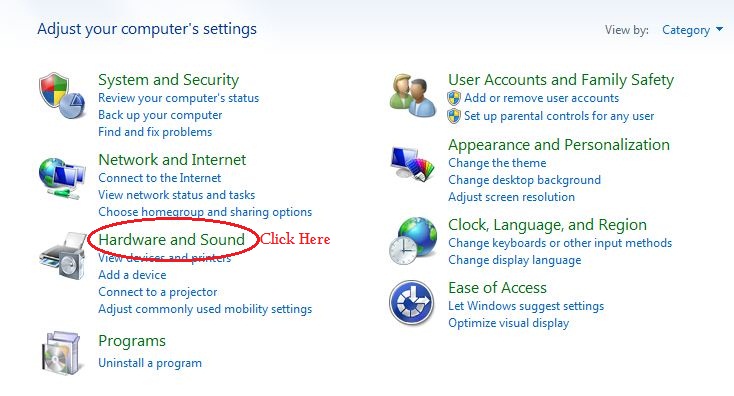
- After Control Panel in category View, Click on “Hardware and Sound“
Look Below at the Picture and Follow the same :
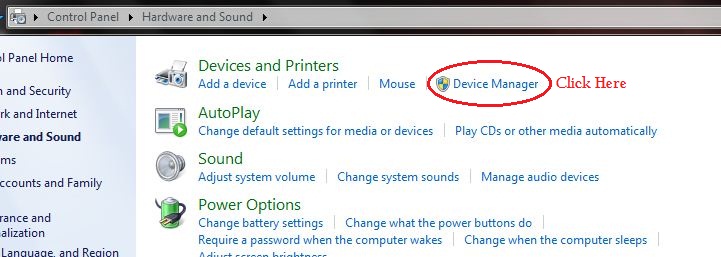
- Now, in Device and Printers Click on “Device Manager” as Shown in the Picture Below:
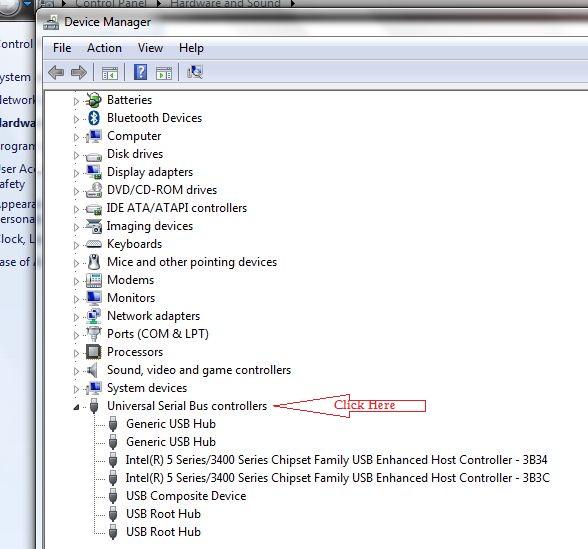
- After That, In Device Manager a Pop-up Window will open Then Expand the Universal Serial Bus Controller and then Double click on the all the USB drivers e.g Double Click on Generic USB Hub. as Sown Below:
When You Double Click on any of the Expand Option Examaple: Generic USB Hub the New window will open i.e Properties You can Also Right Click on The Option and click on “Properties“
- In Properties Click on “Power Management” Tab and Unchecked The “Allow the computer to turn off this device to save power“
- Remember Do Not Check this option keep it Unchecked
It will be More Clear from the Picture Below:
And Yes, Here You Go>>>>
You have Done it, it was Simple yeah. isn’t it.
Now Your Problem For “USB Device is not recognized” is Solved.
Hope the above Solution helps you, thanks for Visiting Us, Comment below if You have any Query regarding the above issue.
Thanks & Regards
Engineers Corner